
YesEveryone is forking a WebKit browser. We spent the tokens so you don't have to.

Full Arc parity, and open source.

Copper is a fast little Mac browser with agents built in, plus a server you run yourself. MIT, all of it.

Download for macOS
brew install --cask copper-browser/copper/copper

macOS 14 or laterApple Silicon9 MB downloadNo account

The browser

Arc's best parts, on WebKit.

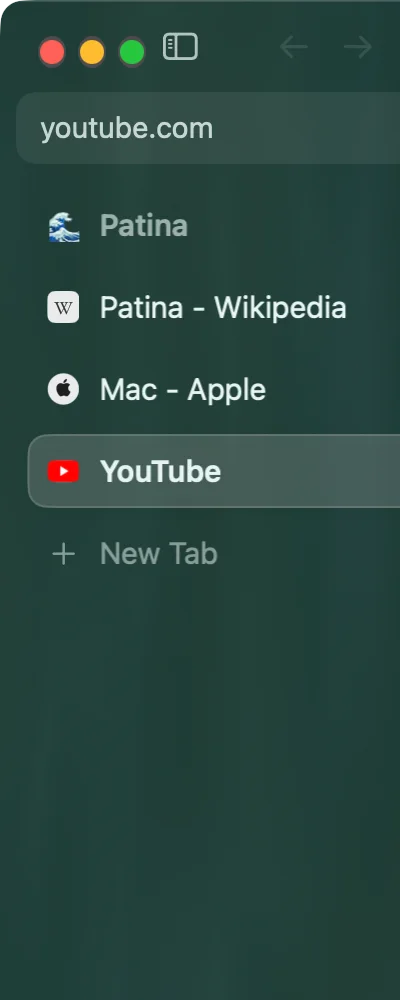
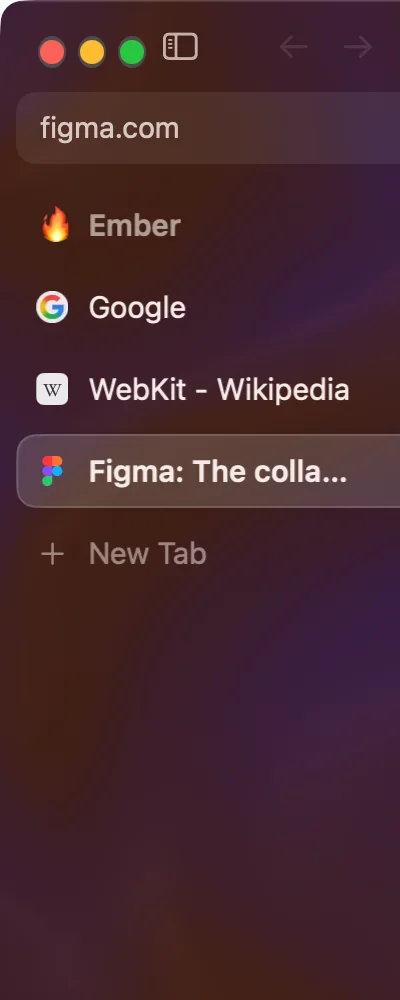
The parts of Arc people miss are here: spaces with their own animated themes, Favorites, Saved and Today, folders, tab groups, split view, a ⌘K command bar and auto-archive.

It runs on the WebKit already inside your Mac, so there is no second copy of Chromium to download, update and keep in memory.

  • ⌃NNew space
  • ⌃1Jump to a space
  • ⇧⌘DSplit view
  • ⌘KFind any tab
Switching spaces in Copper. The whole sidebar changes with you, and every space keeps its own tabs.

Try it here.

A small working copy of Copper's window. Click a tab, switch spaces, find any tab by name, or hide the cookie banner for good.

Personal
Shortcuts work while the demo has focus. Nothing here leaves this page.

Quiet by default.

No toolbar, no start page, no sidebar of suggestions, no account to sign into. The things people install extensions for are already here, each one keystroke away.

A tab, then ⌘K and three letters to find one in another space, then the Work space, then the tabs across the top. Recorded in Copper as it is, not a mock-up.
  • One field

    ⌘L

    Type an address and you go there; type words and you search. Nothing you type is sent anywhere until you press Return.

  • Tabs that stay out of the way

    ⇧⌘S

    Across the top or down the left. Pinned tabs shrink to a letter, and last session's tabs cost nothing until you click them.

  • Spaces

    ⌃N

    Rows of tabs with a name, an icon and a colour the whole column wears, and optionally a profile of their own.

  • Find any tab

    ⌘K

    Lists your open tabs by name as you type. The one you are on is always unmistakable.

  • Hide anything, for good

    ⇧⌘H

    Click a cookie banner or a newsletter overlay away. It stays gone on that site next time, before the page draws a frame.

  • Reading mode

    ⇧⌘R

    Strips a page down to the article.

  • An ad blocker that runs before the page

    Trackers and ad networks are stopped at the network level, so there is nothing to render and nothing to slow you down. On by default, off per site.

  • Video that follows you

    ⇧⌘P

    Lifts the video into a small window that stays above everything, including other apps.

  • Passwords, in your keychain

    ⌥⌘L

    Saved once a sign-in has actually worked, offered when you click the field, never filled on its own. Encrypted by macOS.

  • Updates itself, quietly

    A new build is downloaded and verified in the background first. Copper never restarts without your say-so. Light, dark, or the Mac's own — the frame and the pages follow.

Moving in

Moves in from Chrome or Arc.

Flow is one button. It reads the other browser's files on your Mac and never changes them. Imported pages stay asleep until you visit them, and macOS asks once before handing over the other browser's key.

Chrome or Arc Copper What comes over
  • Open tabs and windowsas sleeping tabs
  • Arc spaces, pinned tabs, tab groupseach a new space
  • Bookmarks and historythe field knows where you go
  • Passwords and signed-in stateinto the keychain
  • Google Password Manager passkeysafter one approval
  • Extensionsreinstalled in the background
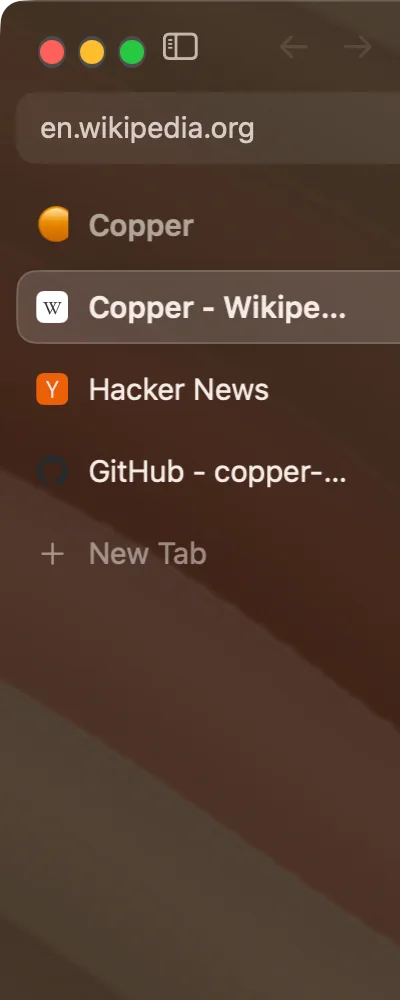
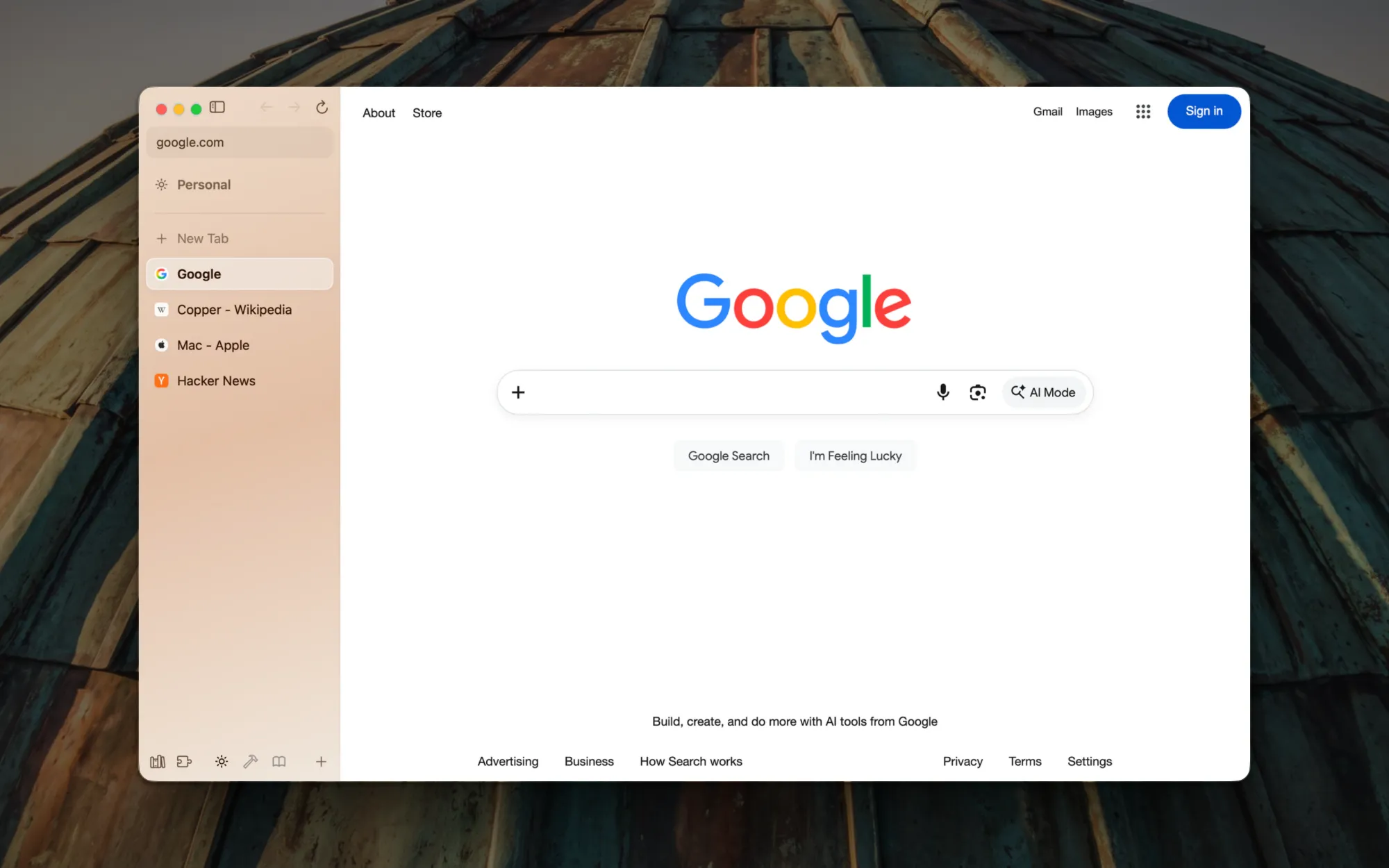
A Copper window on google.com in front of a patina-green copper dome. The sidebar on the left, washed in the Personal space's warm copper, holds the address, the space's name and four tabs: Google, Copper on Wikipedia, Mac on apple.com and Hacker News. There is no toolbar.
Tabs down the left and the page. That is the whole window.

Chrome extensions, without Chrome

Paste a Chrome Web Store link, or press Add on the extension's page. It runs on WebKit's own extension engine, the one Safari uses, and Copper fills in the Chrome APIs WebKit lacks. macOS 15.4 or later.

Built for agents

We draw where your agents go.

Copper is an MCP server. Claude Code, Codex or any MCP client can drive the browser you're already signed into. Copper draws where each agent is about to click and badges every tab with the agent working in it. Press Stop and the browser is yours again.

Three agents, three tabs, one browser. The badges in the sidebar say who is where; the trail on the page shows the next click before it happens.
  • One switch. Settings › Agents › Let agents drive this window. Set up for Claude Code and phi is one press, no token pasted into a prompt.
  • A copper command for the shell, linked into your PATH by Homebrew. It never starts Copper on its own.
  • Loopback only, behind a bearer token readable by you alone. Pages in other browsers can't reach in.
$ copper health
Copper health: running: true
Jev mode: on

$ copper tabs
### Open tabs
- 0: (current) [Google] (https://www.google.com/)
- 1: [Copper - Wikipedia] (https://en.wikipedia.org/wiki/Copper)
- 2: [Mac - Apple] (https://www.apple.com/mac/)
- 3: [Hacker News] (https://news.ycombinator.com/)

$ 
Jev, built in

Ultrafast, and bring your own key.

Hand Copper a goal, not a list of clicks. Jev reads the page's controls, picks an operation and an element in about 200 ms, and acts, instead of waiting on a large model for every click. A small model writes any text it has to type.

Bring your own key: sign in with a Claude account, or point Copper at any OpenAI-compatible gateway.

  • Claude account
  • OpenAI-compatible gateway
  • Haiku, Sonnet or Opus
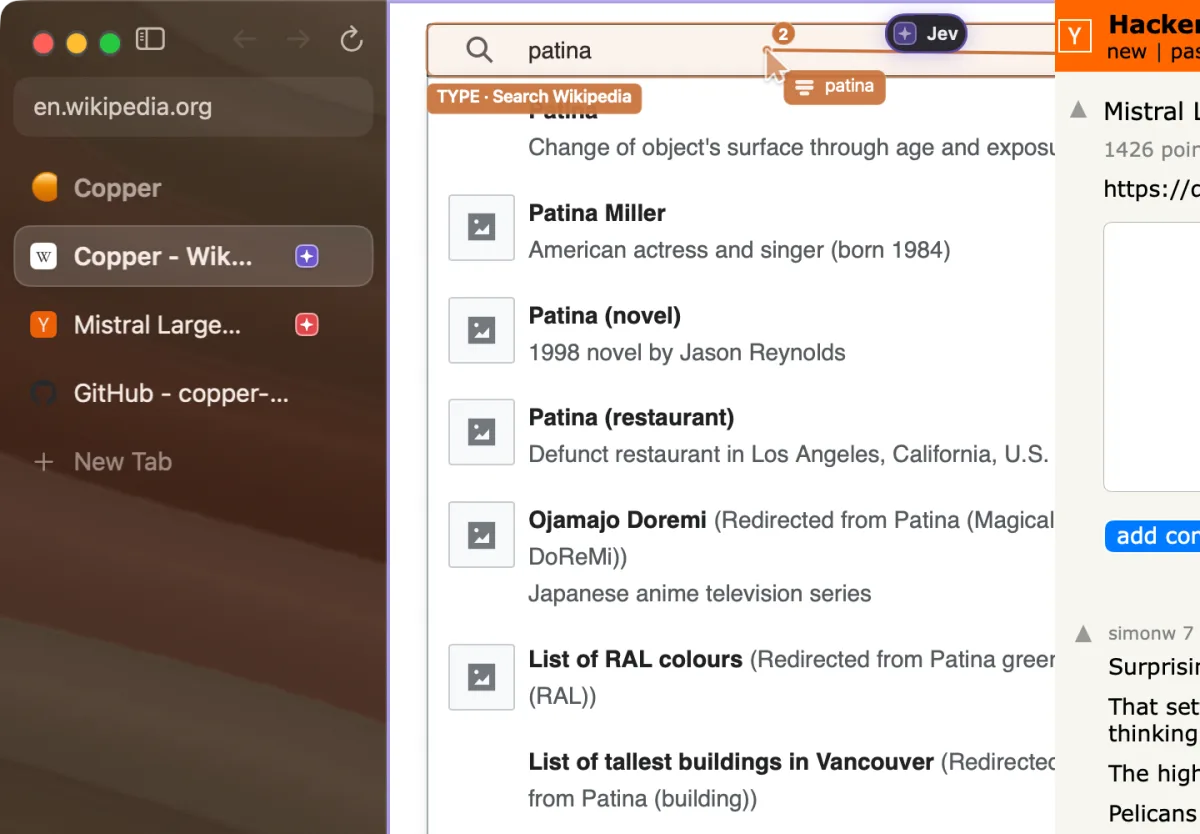
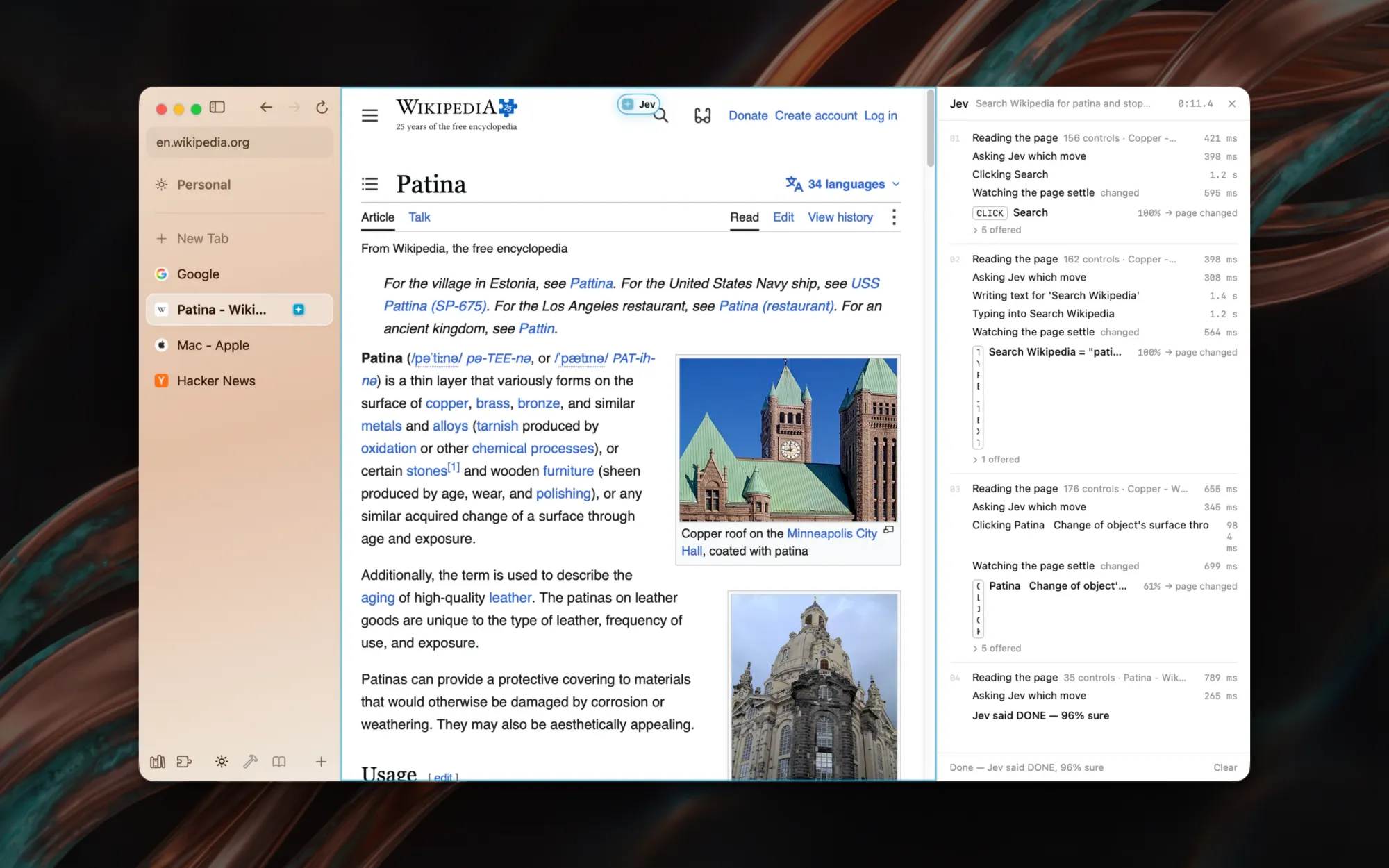
Copper on the Wikipedia article for Patina, with a small Jev pill at the top of the page and the driver timeline open on the right. The timeline lists each cycle: reading the page, asking Jev which move, clicking Search, typing “patina”, clicking the Patina result, and finally Jev said DONE, 96% sure.
The driver timeline (⌥⌘J) shows every cycle: read, ask, act, settle.

One goal, start to finish.

You are reading about copper on Wikipedia and want the article on the green that grows on old roofs. You hand Jev one sentence and watch the timeline.

The real run, recorded in Copper. The driver timeline is on the right; the blue ring and the Jev pill say the page is not yours for now.

11.4 seconds, three actions. Jev clicked Search, a small model wrote the word, and Jev picked the article from Wikipedia's own suggestions. Then it stopped, because the article was on screen.

  1. CLICKSearch372 ms
  2. TYPE“patina” into Search Wikipedia290 ms + 1.3 s text
  3. CLICKPatina, change of object's surface…268 ms
  4. DONE, 96% sureverify it yourself

DONE is Jev's claim, and the tool says so. Your agent is told to check the page before it tells you it worked.
$ copper run "Search Wikipedia for patina and stop when the article is visible"
### Jev run — done in 11.4 s (3 actions, 4 decisions)
Jev said DONE, 96% sure

1. CLICK Search (100%, 372 ms) → page changed
2. TYPE_TEXT Search Wikipedia = "patina" (100%, 290 ms + 1296 ms text) → page changed
3. CLICK Patina   Change of object's surface through age and exposure (61%, 268 ms) → page changed

### Page
- URL: https://en.wikipedia.org/wiki/Patina
- Title: Patina - Wikipedia

$ 
Sign-in for agents

Agents log in, 2FA included.

Connect Bitwarden and your agents use your saved logins, two-factor codes included, on your Mac or on a headless Mac mini. The password never reaches the agent, and you decide which logins they can use.

  • You choose what's shared. Logins in Bitwarden's Agents folder are shared; a copper-agent: deny field keeps one out for good. Agents can't change the rule.
  • Nothing secret comes back. A sign-in reports what was filled, never the password, the code or the session key.
  • Cards and addresses too, with browser_autofill. Driven by Bitwarden's own bw client, no extension.
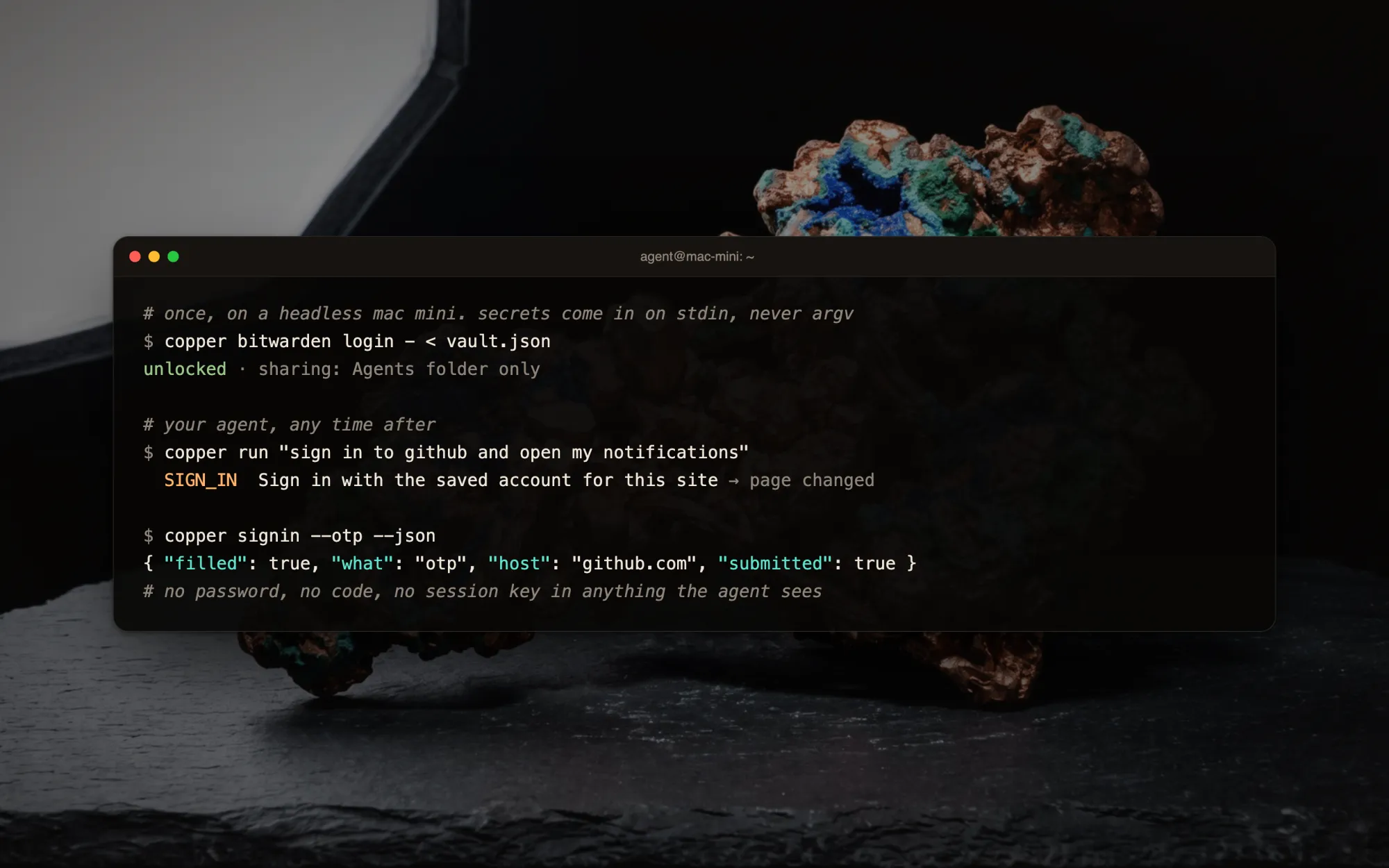
A terminal on a Mac mini. copper bitwarden login reads the vault from stdin and unlocks, sharing the Agents folder only. Then copper run “sign in to github and open my notifications” uses SIGN_IN with the saved account, and copper signin --otp fills the one-time code. A comment notes there is no password, code or session key in anything the agent sees.
Set up once on a headless Mac mini; after that, any agent can sign in.
Canvas

A multiplayer canvas in a tab.

Canvas is a whiteboard that opens in an ordinary tab: stickies, text, frames, arrows, images and live websites. Your Personal canvas stays on this Mac and works with no network.

Link Copper Cloud to share a board and you see everyone's cursors, agents included. The ⌘E agent, MCP agents and the copper command all read and write the same boards. Friends who aren't on Copper can join from any browser: the canvas is open source too.

  • ⌃⇧ENew canvas
  • ⇧⌘OPersonal canvas
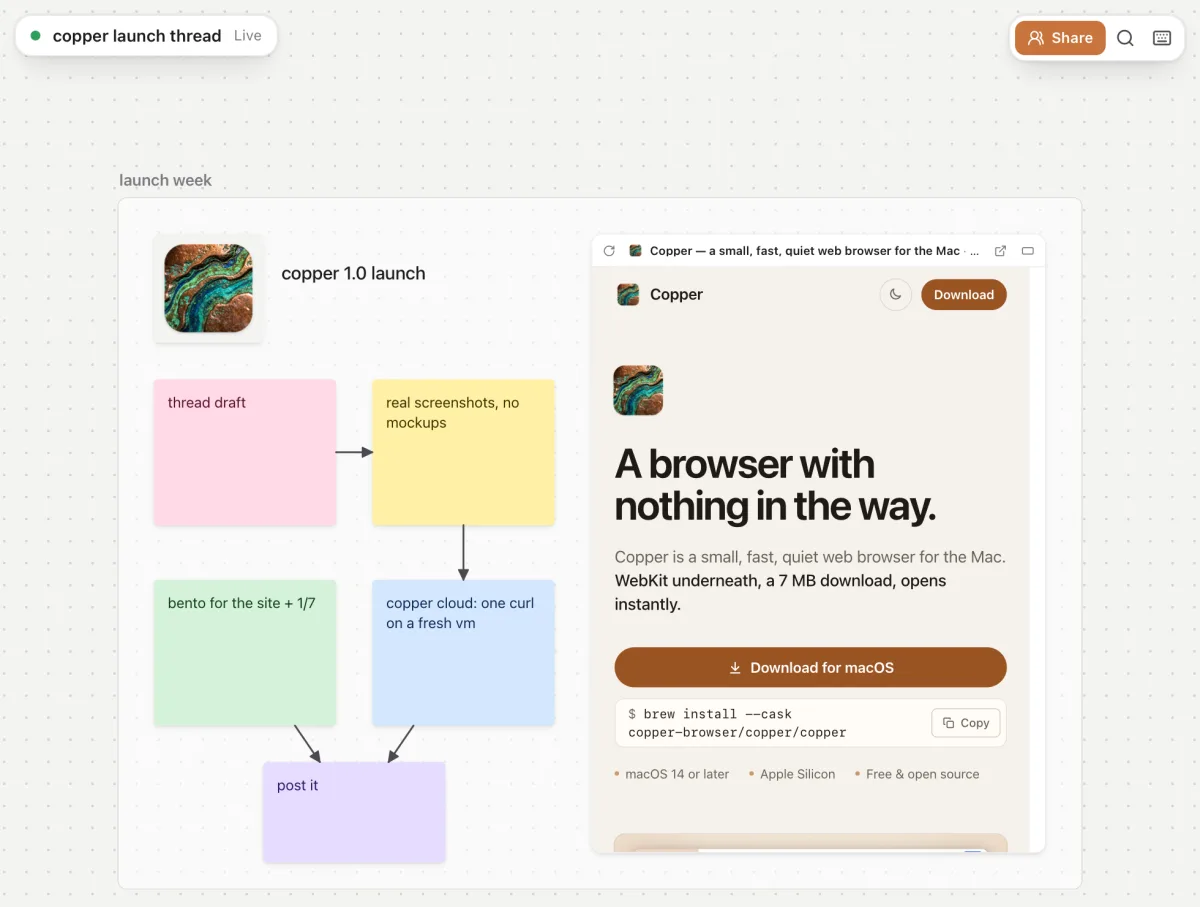
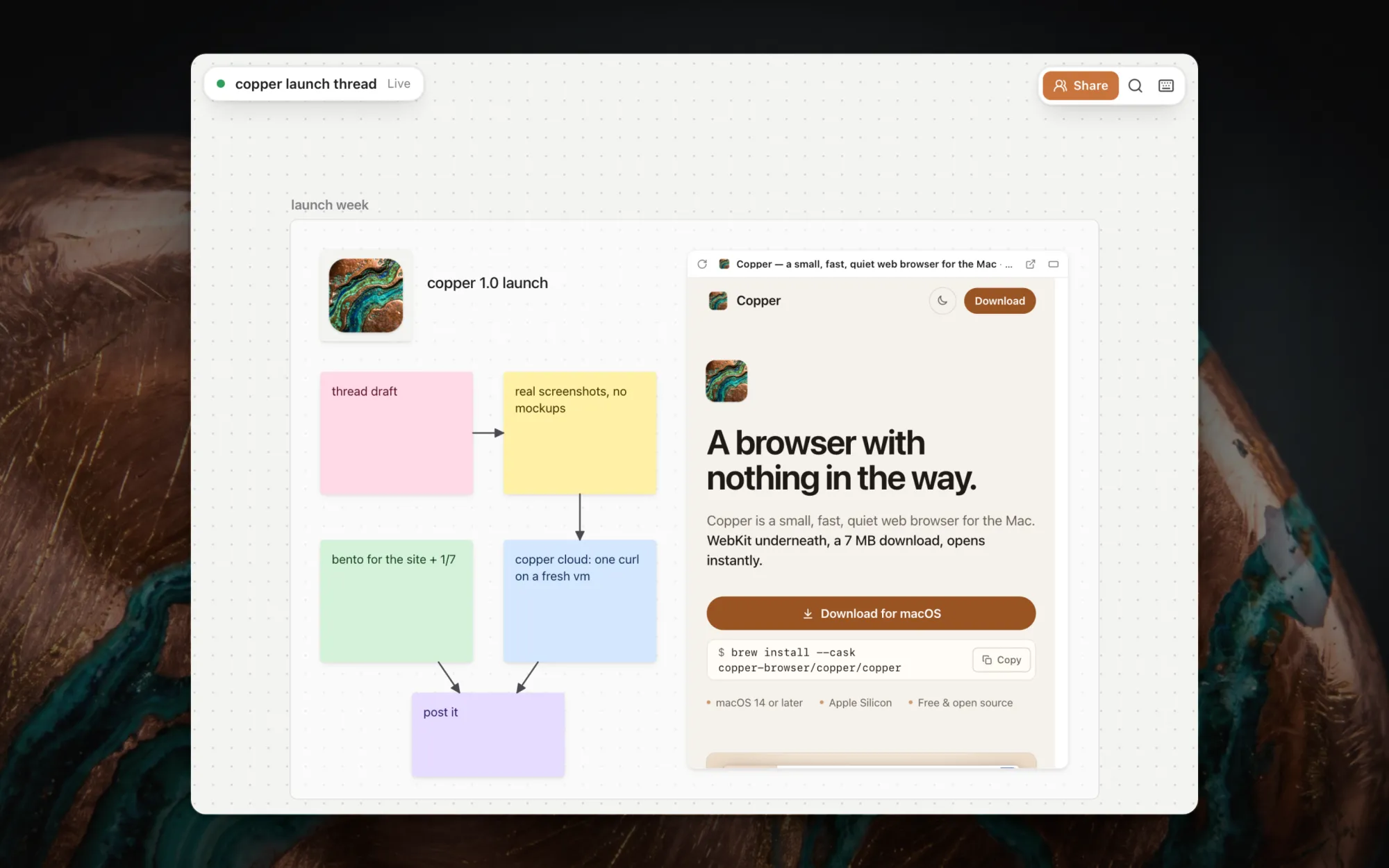
A shared canvas called copper launch thread, marked Live, with a Share button. Inside a frame titled launch week: the Copper icon, stickies reading thread draft, real screenshots no mockups, bento for the site, copper cloud one curl on a fresh vm and post it, joined by arrows, beside a live copy of the Copper website.
An agent laid out our launch on this board.
Canvas App

The canvas is open source, in any browser.

The board Copper shows in a tab is its own project, canvas-app. Copper ships its page, and Canvas App is the same page in Chrome, Firefox, Safari or Edge, with nothing to install. It keeps your boards in the browser, works offline, and joins shared boards live, cursors and all.

MITEvery sticky, frame, arrow and live website on the board, in one repository you can read, build and fork.
One page, everywhereCopper on the Mac and on Linux and Canvas App all run the same page, so a fix lands once.
One file to hostThe whole app is one HTML file. Serve it from your own server, next to the canvases it syncs with.
Copper Cloud

Run your own Copper Cloud.

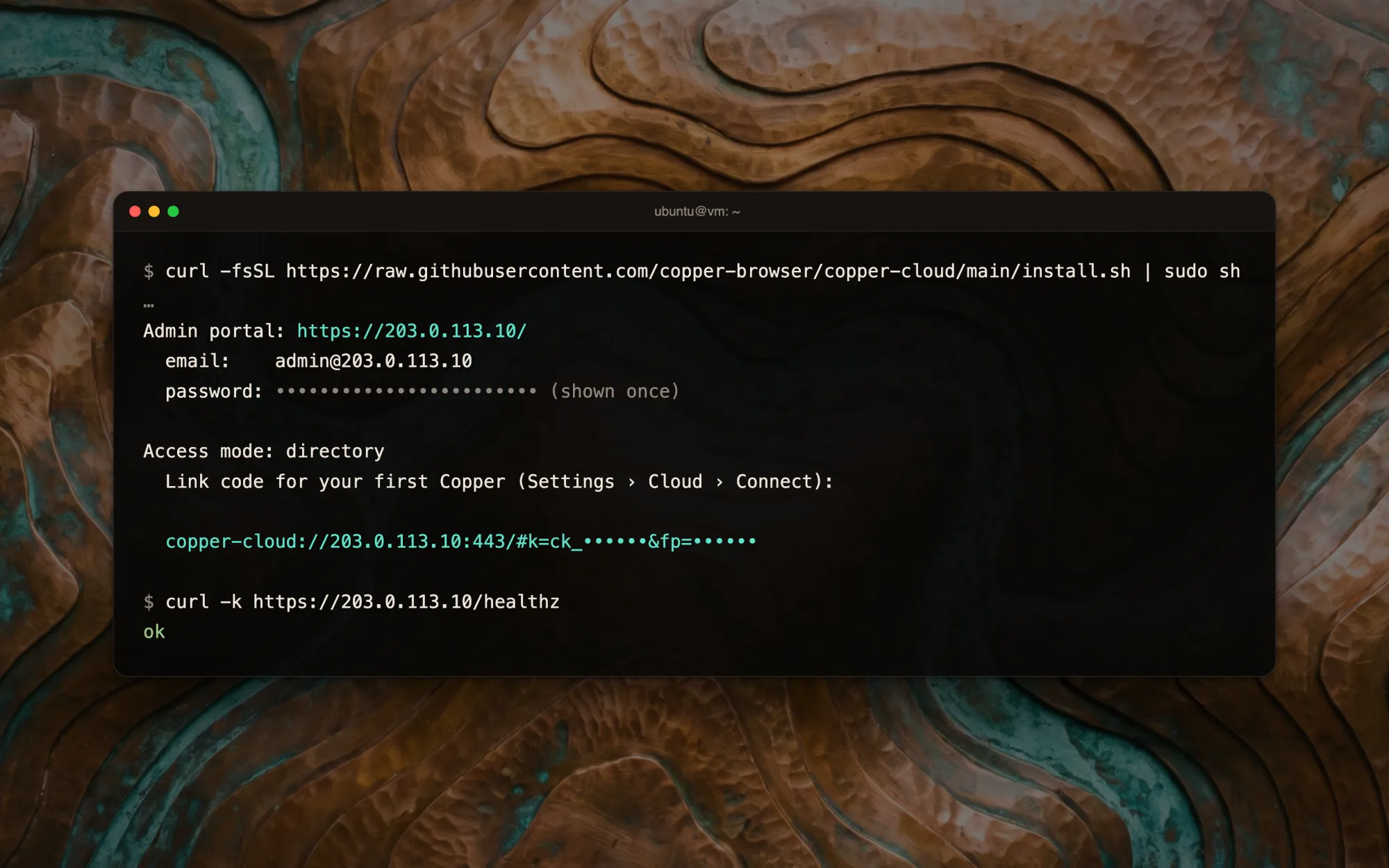
Copper Cloud is the server half: one Rust binary and Postgres, installed with one command on any Linux machine, or with Terraform on AWS. It syncs spaces, tabs, bookmarks and history between your Macs and hosts live canvas rooms.

curl -fsSL https://raw.githubusercontent.com/copper-browser/copper-cloud/main/install.sh | sudo sh
  • Off until you turn it on, and it never carries passwords. You pick what syncs.
  • Pinned by its certificate. Copper shows the fingerprint before it sends anything.
  • Encrypted at rest with your account's key, on a machine you run.
A terminal on a fresh Ubuntu VM. The one-line install prints the admin portal address and a one-time password, the access mode, and a copper-cloud:// link code to paste into Copper's Settings › Cloud › Connect. A health check answers ok.
One command on a fresh VM, then paste the link code into Settings › Cloud.
Privacy

On your Mac, unless you say otherwise.

The only things that leave your Mac are the pages you ask for, their icons, and one small request a day to see whether there is a newer version. Copper Cloud is the one exception, and it stays off until you link a server you run.

No accountNothing to sign into with us. Copper Cloud accounts live on your own server.
No telemetryNo analytics, and no crash reports sent anywhere.
No server of oursYour tabs, history and passwords stay on the Mac, or on a machine you run.
Where everything is
WhatWhere it isWho can read it
PasswordsThe macOS login keychain, as ordinary keychain items tagged Copper, or your Bitwarden vault if you connect oneCopper. Any other app triggers the system's permission dialog.
History, bookmarks, open tabs, hidden elementsSmall JSON files in ~/Library/Application Support/Copper/You.
Cookies and site dataWebKit's own store for the appThe sites that set them, as in any browser.
ExtensionsUnpacked in Copper's own folder, their data in WebKit's extension storeEach extension, within the permissions you accepted.
Copper Cloud, only if you link itThe parts you switched on, on the instance you linked, encrypted at rest with your account's keyYou, and that instance's operator.
Anything elseNowhere.No one.

A private tab (⇧⌘N) has its own cookie jar and leaves nothing behind when it closes.

Install.

For macOS 14 Sonoma or later, on Apple Silicon. Pick one; after that Copper updates itself.

Homebrew Recommended

brew install --cask copper-browser/copper/copper

Also links the copper command into your PATH.

One-line installer

curl -fsSL https://github.com/copper-browser/Copper/releases/latest/download/copper-install.sh | sh

The same build, without Homebrew.

Download the app

Unzip it and drag Copper.app to Applications.

About the first launch. Copper builds are ad-hoc signed, not notarized. Homebrew and the installer clear the quarantine flag for you. After a manual download, run this once, or right-click Copper and choose Open:

xattr -cr /Applications/Copper.app
Pure Swift, no dependencies beyond what Apple ships.
Open source

MIT, all of it.

The browser, the server and the canvas. Read it, build it, fork it. No account, no telemetry, and issues and pull requests are welcome.

Built by Collin Rijock and Felipe Arce. We built it at ShellHacks at FIU.

A glass card over a sculpted copper stone veined with patina. It reads: copper. A fast little Mac browser, basically full Arc parity, with agents built in, plus a server you run yourself. MIT, all of it. Below are the two repositories, github.com/copper-browser/Copper and github.com/copper-browser/copper-cloud, and the line built by Collin Rijock and Felipe Arce.